 Account Info
Collage Cloud Connector is a Windows tray application that provides download and Autodesk Recap point cloud conversion capabilities for Collage Web projects.
The Collage Cloud Connector installation process uses a setup.exe file located in the installation folder. Running the setup file launches an installation wizard that requires administrator privileges. Once installation is complete, the application can be launched from Windows search by locating "Collage Cloud Connector".
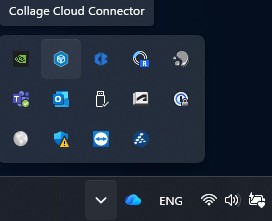
After launching the application, the Collage Cloud Connector icon appears in the Windows system tray and should open automatically. Clicking the icon in the Windows system tray also opens the application interface.
Installing a new version of Collage Cloud Connector automatically uninstalls the previous version but leaves the project data you previously downloaded and converted.
Collage Cloud Connector can be uninstalled through Windows Settings > Apps.
Account Info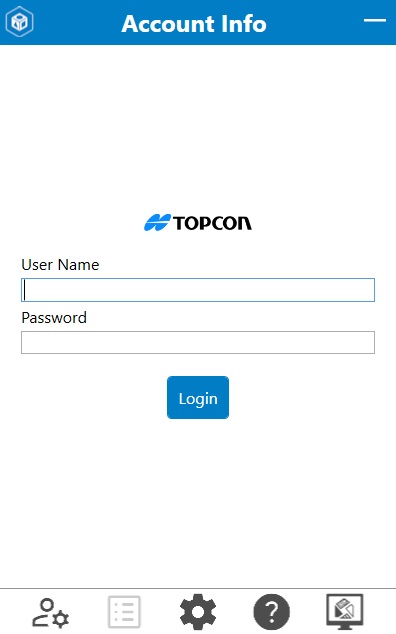
The Account Info screen provides access to Collage Web projects through account authentication. The User Name and Password fields accept Collage Web account credentials. The Login button attempts authentication. Upon successful authentication, Collage Cloud Connector automatically transitions to the Projects menu. If authentication fails, an "Invalid Username or Password" message appears above the Login button.
The Logout button logs out the current account revoking access to the project list (any downloaded projects are still accessible in their downloaded file paths). The Edit Profile Online link opens the Collage Web account settings page in the default web browser and is only visible after successful authentication.
 Projects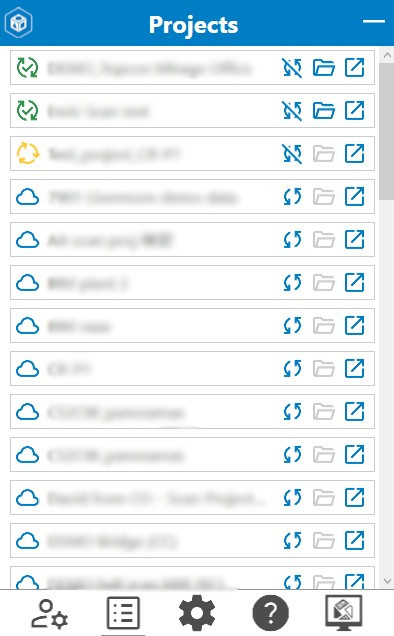
The Projects menu displays all Collage Web projects associated with the authenticated account. Each project entry includes three action buttons located to the right of the project name:
 Downloads the project from Collage Web and stores it in the designated Download Folder (configured in Settings). Point cloud data, when present, is automatically converted to Recap .RCP format during download.
 This button only appears after a project has been downloaded and replaces the Download button. Changes the project status to "Not Downloaded" and removes the local copy of the project.
  Opens the file system location where the downloaded project is stored. This button is only available for projects that have been downloaded.
 Opens the selected project in Collage Web using the default web browser.
Projects display one of three status indicators to the left of the project name:
 The project exists only in Collage Web and has not been downloaded to the local machine on the current version.
 The project download is currently in progress. Multiple projects can be downloaded simultaneously. The Collage Cloud Connector system tray icon displays rotating yellow arrows during active downloads and changes to a green checkmark when a download completes. Downloads continue in the background even when the application window is minimized or closed.
 The project has been downloaded to the local machine on the current version and point cloud data has been converted to .RCP format. If no point cloud data exists, all project data is still downloaded.
While in the Projects menu, pressing the Projects button refreshes the project list to reflect current Collage Web access permissions and existing projects. Removed permissions or deleted projects in Collage Web are removed from the list and deleted from the local directory. Newly accessible projects are added to the list.
When Collage Cloud Connector is updated to a new version, previously downloaded projects do not retain their "Downloaded and Converted" status. Projects must be downloaded again after a version update for the download status to reflect accurately, even though the project files remain in their local locations. Downloading a project again overwrites any existing files for that project.
 Settings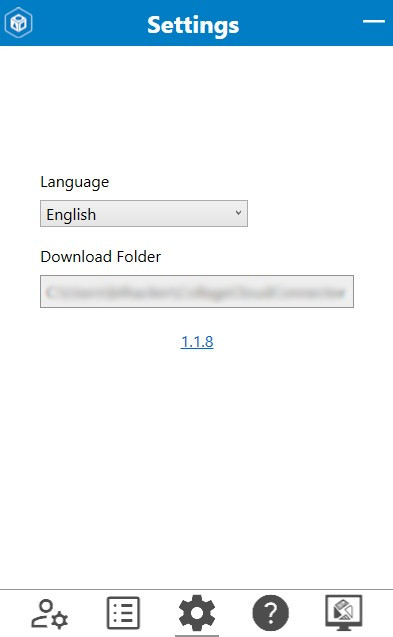
The Settings menu provides configuration options for Collage Cloud Connector. The Language dropdown allows selection of the display language for the application interface.
The Download Folder setting determines the local storage location for downloaded Collage Web projects. Clicking the folder path opens a directory browser where a new location can be selected. The Select Folder button confirms the change.
The version number displayed in Settings functions as a link to the Collage Cloud Connector help documentation.
 Knowledge Base
The Knowledge Base button provides access to the Collage Web Knowledge Base in the default web browser.
 Go to Collage Web
The Go to Collage Web button opens the Collage Web projects interface in the default web browser.
The minimize button located in the top right corner of the application window returns Collage Cloud Connector to the Windows system tray. Clicking the Collage Cloud Connector icon in the system tray also minimizes the application window. The application continues running in the background when minimized.
To close the application completely, the system tray icon provides an Exit option accessible through the right-click context menu.